Thinka ondersteuning
Thinka ondersteuning is hier om te helpen. Vind antwoorden in onze veelgestelde vragen en bekijk onze videotutorials die je helpen bij het instellen van je Thinka-apparaten om samen te werken met Apple HomeKit.
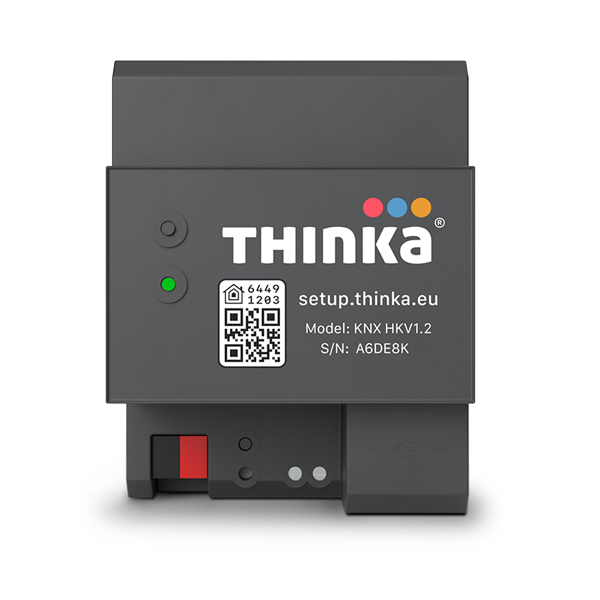
Thinka voor KNX
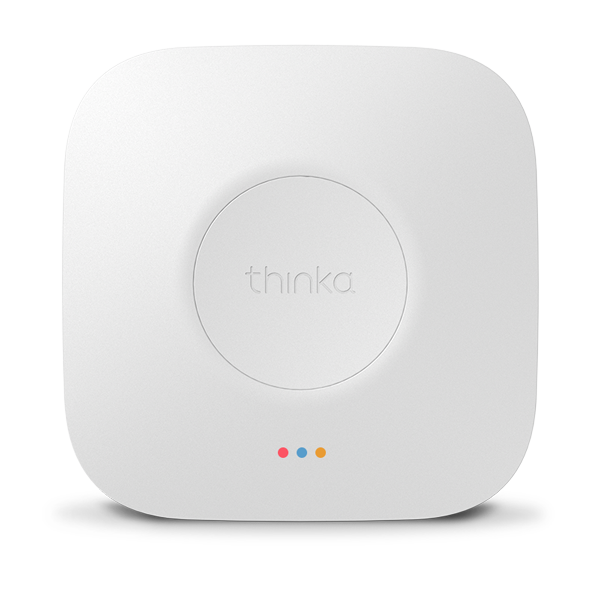
Thinka voor Z-Wave
Trouble Shooting
We're sorry to hear that you are experiencing issues with your Thinka. Before contacting support there are a couple of things that you can do.
First of all have a look at the LED(s) on the Thinka. The color and the fact that it is flashing or not, is an indication for a possible problem. The LED should normally be solid green. If it is another color, please look at what-do-the-colours-of-the-led-on-the-thinka-mean
Second you could try to reach the web interface of your Thinka, see how-do-i-find-my-thinka-on-my-network
If you still have problems with your Thinka, try to reboot your Thinka, see how-do-i-reboot-my-thinka
If that does not work, check whether the little LEDs next to the network port are on, they should be green and orange. If they are on (or flashing) your Thinka has connection to the network, and you can install the Thinka Companion app, see what is the companion app?
Alternatively you could try to find your Thinka by looking up its (DHCP) address on your router.
When all this fails, please note your Thinka's serial number and contact support@thinka.eu
Installation
Thinka requires an existing KNX installation in your home, an available ethernet port and a mains socket.
An ETS4 or ETS5 project file is optional to start the configuration process.
You will need a modern browser to go through the setup process, IE 11, Safari and Chrome are supported.
The setup process is optimised for PC, Mac and tablets.
To use voice control you will need one of the following devices:
- iPhone
- iPad
- HomePod
- Amazon Echo
- Google Home devices
To pair your Thinka with HomeKit you first need to install the Thinka Companion app on your iOS device. When you first open the app, iOS 14 and higher will ask for permission: "Thinka" would like to find and connect to devices on your local network. HomeKit setup only works through the local network. You can verify that the Thinka Companion app has Local Network access in the iOS Settings app:
Settings appSearchLocal Network
You can add the device yourself from the web UI of your Thinka. Click "Add Device" at the top of the page, and follow the instructions. You can see the screenshots of the instructions for a sample device as follows. These steps might differ from device to device.
Click "Start" Button
Now turn Z-Wave device in to inclusion mode and then wait for Thinka finding device
Press "Submit" button
For secure Z-Wave devices it needs to be entered PIN which is the first 5 digit of DSK. Otherwise this screen will not appear.
Now device has been added successfully. Now you can set the name and room by typing "Set name and room" button or just keep the name and room as default by clicking "Done" button
Thinka is meant to be installed in your meter box on a DIN rail. A professional KNX system integrator should be able to do this. We have a video showing the installation, see our video channel.
There are two things that should be connected. One is power adapter and the other one is a network cable.
Both. In this video we show a connection to the KNX bus via TP, but you can also configure an IP Gateway in the setup of the Thinka.
Newer versions can, but version HKV1.2 and older can not, the KNX bus provides around 320mA over 30V (less than 10 W) which is not sufficient to power both your KNX system and a Thinka.
Doing so can result in your KNX installation becoming irresponsive due to lack of power.Use a separate KNX power supply, or use the power supply provided by Thinka.
See also powering the Thinka KNX
Shipping
Configuration
In order to find your Thinka on your local network, use your browser to go to https://setup.thinka.eu and fill in the serial number of your Thinka. We will then redirect you to your Thinka on your local network. If your Thinka is protected by a password, provide it, and you will be directed to the Settings page, where you can manage your Thinka via this web interface.
It may be handy to bookmark the web interface of your Thinka, so you do not need to go to the setup.thinka.eu site again.
De eerste 10 FAQs worden weergegeven. Gebruik de zoekfunctie of bezoek de KNX- / Z-Wave-pagina's om meer te vinden.